
Get started automating your payments today with our Sandbox API.
Set Up Your Sandbox Account
Follow these steps to set up your sandbox account
Step 1: Create a Sandbox Account
Create a sandbox account on this link https://sandbox.complypay.com/try. The information doesn't have to be real, but the email should be correct for you to receive the setup emails.
Step 2: Create password
Open your email and use the link you have received to create your password.
Step 3: Download the ComplyPay Authenticator App "MoneyAuth"
Once you've created your password, you need to download the Authenticator App, called "MoneyAuth":
Configure the app to sandbox mode:
- Open the app.
- Press the "settings" button.
- Select "Sandbox" and "Email".
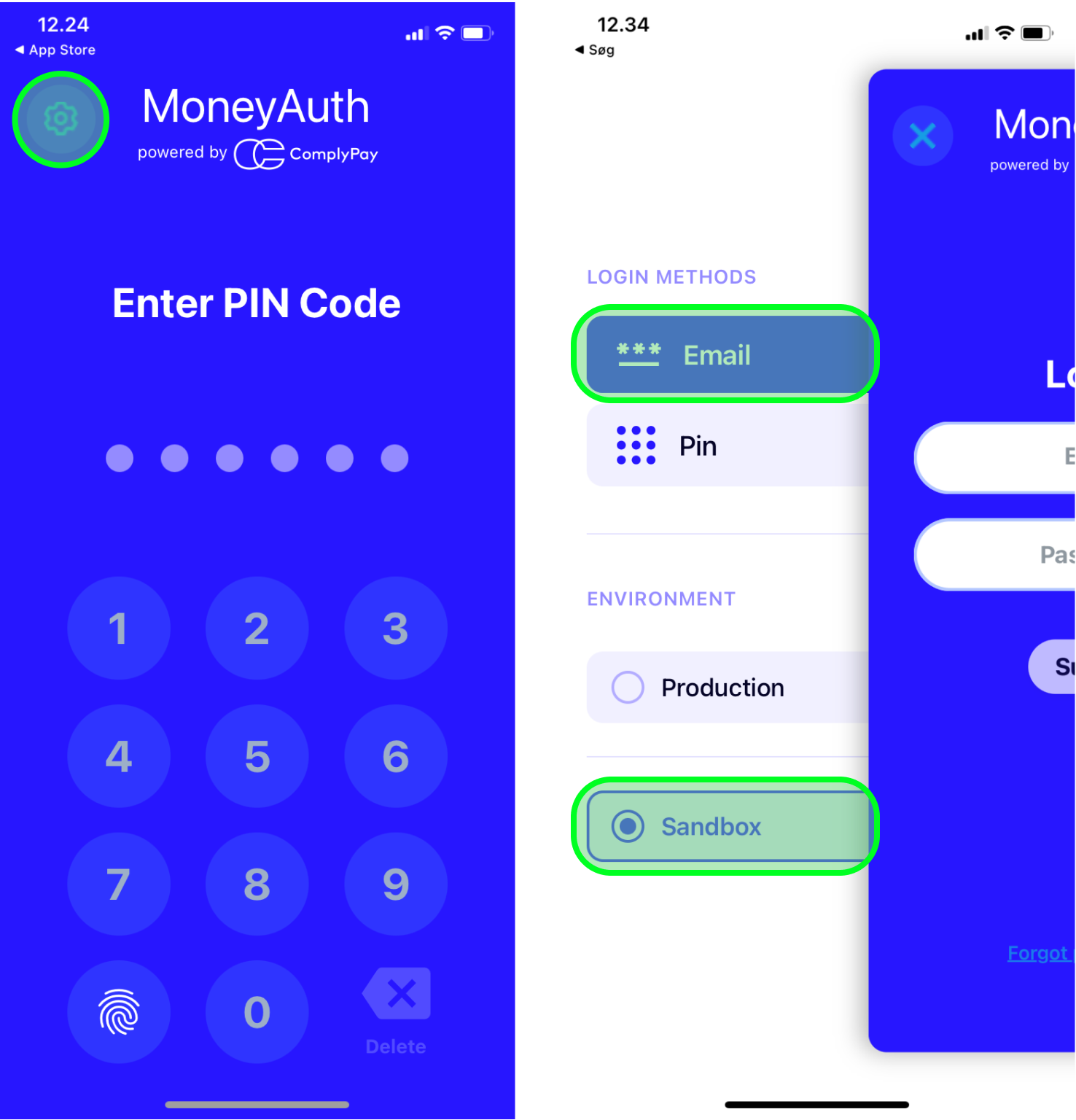
Now you can log in with your email and password. The app will guide you through the final account setup and generate a secure private key that you will use to sign your payments.
Step 4: Log in to Dashboard
Your account is now fully set up 🎉
You can log in to the Dashboard on https://sandbox.complypay.com/.
You will have 2 accounts by default: a Split and a Treasury, both with 10,000.- that you can use to try out the payment flow.
Core Concepts
A quick overview of the accounts and objects you'll be working with:
- Treasury Account — your own operating account.
- Split Account — the account your payment acquirer/PSP settles collected funds into.
- Vendor Account — represents the recipient you're paying out to. If your vendors are individual end users rather than businesses, the Vendor wallet is created instantly when you call the API, but starts in a "pending KYC" state. Once KYC information is collected, the state changes to "Approved" — visible both in the Dashboard and via the API.
- Payment Object — represents a transfer of funds between two accounts (e.g. Split → Vendor, or Split → Treasury), created via the API or the Dashboard.
To move funds all the way from your Split Account to a vendor's IBAN, you'll need two steps:
- First, create a Payment Object to move funds from the Split account into the Vendor's wallet.
- Then, trigger a payout to send those funds from the Vendor's wallet to their IBAN.
The next section will guide you through the entire payment flow.
Make Your First Payment
To get started without any coding, continue to Make Your First Payment via Dashboard below.
To get started with the API, skip to Make Your First Payment via API.
Via Dashboard
-
🙋♀️ Create Vendor Accounts
- Every payment needs a recipient, so your first step is creating a vendor account.
Go to 'Vendors' in the left sidebar of the Dashboard, then click 'Create Vendor' and enter the recipient's information. This creates a wallet for the vendor, which has its own balance.
- Every payment needs a recipient, so your first step is creating a vendor account.
-
💰 Create Payment Objects
- Go to the home screen and press on the split account. Here you can press 'create payment'. Create a payment to your new vendor.
-
✅ Approve Payment Objects in your Dashboard
- Once you have created a Payment Object, it must be approved via the dashboard. If you do not want four eyes approval, we can turn this off for you. You approve the payment by pressing the green tick box in the right side of the payment. In production, this could be done by someone in your finance department.
-
📲 Sign Payment Objects in ComplyPay Authenticator App
- The final step is to sign the Payment Object with the private key of your wallet, which is securely stored in the ComplyPay Authenticator app on the user's phone. To sign, log in to the app and swipe.
-
🏦⬅ Payouts
- Once the funds are in the vendor account, you can choose to pay them out to their bank account, e.g. daily, weekly, or monthly.
- Trigger a single vendor's payout by navigating into that vendor's account and pressing the 'payout' button.
- Trigger payouts for all vendors at once by going to the Vendors overview and pressing 'payout all vendors'.
- If your payout to the vendor fails, e.g. due to an incorrect IBAN, the funds will stay inside the vendor's wallet. You can then go into the vendor's account, edit the vendor information, and press 'payout' again, to retry the payout.
- Once the funds are in the vendor account, you can choose to pay them out to their bank account, e.g. daily, weekly, or monthly.
By following these steps, you'll be able to successfully navigate our sandbox environment and make your first payment via the Dashboard.
Via API
-
🔐 Grab a JWT token
- Once your sandbox account is set up, you can use your credentials to authenticate to our API as detailed in the Authentication section. You use your credentials to Retrieve JWT token which is used to authorise HTTPS requests.
- Important: It is important to keep your credentials secret, as they can be used to create payments on your behalf. Do not commit the credentials to any code repository, but store them somewhere safe.
-
🙋♀️ Create Vendor Accounts
- Create a 'Vendor Account' which contains the information of the recipient.
-
💰 Create Payment Objects
- Create a Payment Object where the
payeris either the string "SPLIT", "TREASURY" or theidof your treasury payment wallet / split wallet (for more details about the different wallets see here). Thepayeeshould be theidof the newly created Vendor Account.
- Create a Payment Object where the
-
✅ Approve Payment Objects in your Dashboard
- Once you have created a Payment Object, it must be approved via the dashboard. In production, this could be done by someone in your finance department. If you do not want four eyes approval, we can turn this off for you.
-
📲 Sign Payment Objects in ComplyPay Authenticator App
- The final step is to sign the Payment Object with the private key of your wallet, which is securely stored in the ComplyPay Authenticator app on the user's phone. To sign, log in to the app and swipe.
-
🏦⬅ Payouts
- Once the funds are in the vendor account, you can choose to pay them out to their bank account e.g. daily, weekly or monthly.
- If a payout fails, e.g. due to an incorrect IBAN, the funds stay in the vendor's wallet. You can edit the vendor information via update vendor and then you can retry the payout.
By following these steps, you'll be able to successfully navigate our sandbox environment and make your first payment via API. For further details on each step, refer to the linked sections in the documentation.